How to get starter with DynaRoad
DynaRoad is currently available under the Topcon Project name. Follow these steps to create your Topcon ID and get started.
1. Create your Topcon ID
Visit the Topcon website and create a free account.
- Select Create Account.
- Enter your contact and company details.
- Follow the email confirmation instructions.
- Sign in using your new Topcon ID.
2. Access myTopcon
Sign in to the myTopcon support portal using your Topcon ID.
3. Download Topcon Project
Download the installation file using the download button below.
Once the file has downloaded, locate it in your Downloads folder. If the installer is provided in a ZIP package, extract it before running the setup application.
Download Topcon Project (Dynaroad) →
4. Install the software
Installing takes just a few steps.
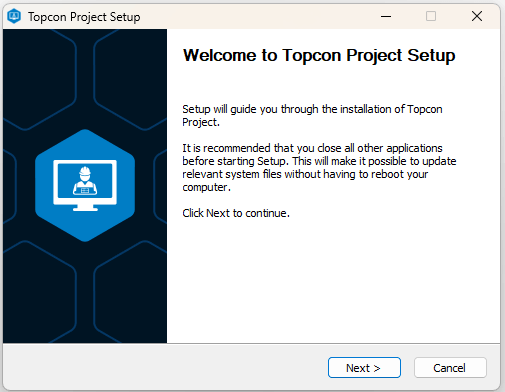
- Run the Topcon Project setup file.
- Click Next and follow the installation instructions.
- Accept the license agreement if you agree to its terms.
- Complete the installation and click Finish.
You may need administrator permissions to install the software on your computer.
5. Activate your DynaRoad license
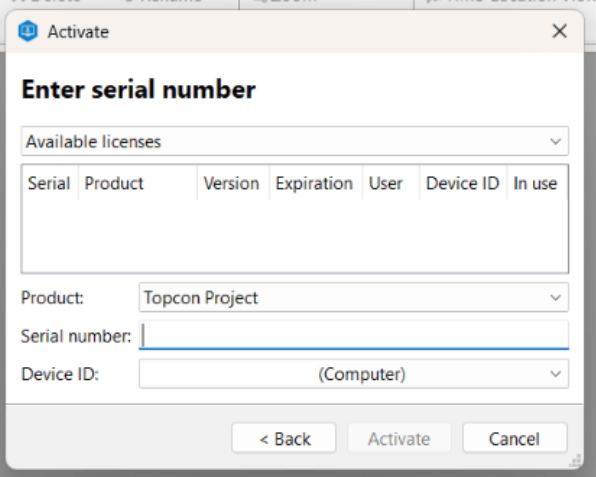
Select Online and click Next. Sign in with your Topcon ID if prompted
When you open Topcon Project for the first time, the software will ask you to activate your license.Choose your activation method.
Available licenses may appear in the list. Select your license or enter the serial number provided to you.
Make sure the product is set to Topcon Project, then click Activate.
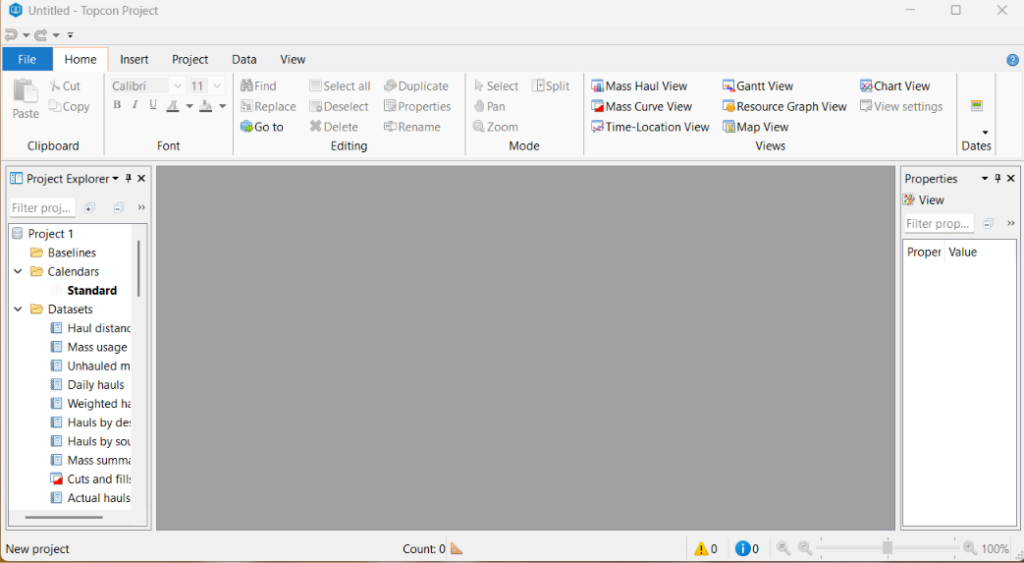
You’re ready to go!
Once activated, Topcon Project opens its welcome screen. From here, you can:
- Create blank project – Start a new project from scratch.
- Create project from template – Use an existing template.
- Open project – Continue working on an existing project.
If you need help with installation or licensing, our team is happy to assist.